Financial Aid Verification
What is Verification?
Verification is a process required by the U.S. Department of Education to ensure the accuracy of the information reported on your Free Application for Federal Student Aid (FAFSA). The verification process requires our office to verify or confirm certain data elements reported by you and/or your parents on your FAFSA.
Federal financial aid will not be awarded nor disbursed until all required Verification and/or V4/V5 Identity Verification documentation has been received and verified.
How Do I Complete the Verification Process?
If you have been selected for Verification, you will receive notification in your Online Student Center, which will inform you of the form(s) and/or document(s) that you are required to submit. To access your required forms:
- Log in to your MCCCD Student Center using your MEID and password, and check the dropdown located in the upper-left area of the page to confirm that you are on the Student Center Homepage
- Select My Student Forms
- Select Financial Aid Forms
- Select, Complete, and Submit each of the form(s).
Additionally, you may review your online FAFSA Submission Summary for an asterisk (*) next to your Student Aid Index (SAI) and a comment notifying you that you have been selected for Verification:
- Log in to your federal StudentAid.gov account Dashboard,
- Select your processed FAFSA submission from the “My Activity” section, and
- Select “View FAFSA Submission Summary”.
What Is V4/V5 Identity Verification?
V4/V5 Identity Verification is a process required by the U.S. Department of Education to ensure the authenticity of students submitting a Free Application for Federal Student Aid (FAFSA). If you are selected for Identity Verification, you will receive notification in your Online Student Center, which will inform you that you are required to authenticate your identity in one of the following three ways:
- Take an unexpired, valid, government-issued photo ID (such as a drivers license, passport, or state ID) to your college financial aid office for In-Person Identity Verification.
- Submit a certified and notarized V4/V5 Identity Verification Student and Notary Certification and Signatures Form, with a front and back-side copy of an unexpired, valid government-issued photo ID.
- Participate in a real-time video chat with a representative of the Maricopa Community Colleges District Office of Financial Aid Services, by Selecting the ‘Open Chat’ Option located in the lower right- corner of this screen > Select “Connect me to Financial Aid Identity Verification” > Follow the Steps to Connect to the Financial Aid representative and verify your identity.
The Identity Verification process is not complete and federal financial aid will not be awarded or disbursed until required documentation has been received and verified.
How Do I Complete the V4/V5 Identity Verification Process?
If you have been selected for V4/V5 Identity Verification, you will receive notification in your Online Student Center. If selected, submit the documentation necessary to authenticate your identity, in one of the following three ways:
- Take an unexpired, valid, government-issued photo ID (such as a drivers license, passport, or state ID) to your college financial aid office for In-Person Identity Verification.
- Submit a certified and notarized V4/V5 Identity Verification Student and Notary Certification and Signatures Form, with a front and back-side copy of an unexpired, valid government-issued photo ID.
- Participate in a real-time video chat with a representative of the Maricopa Community Colleges District Office of Financial Aid Services, by Selecting the ‘Open Chat’ Option located in the lower right- corner of this screen > Select “Connect me to Financial Aid Identity Verification” > Follow the Steps to Connect to the Financial Aid representative and verify your identity.
Frequently Asked Questions
To enter your parent's signature to the eForm, complete the following steps:
- Enter your parent’s name, your parent’s email address, and a passphrase while completing the Verification Worksheet. The passphrase will NOT be sent to your parent; however, you will need to provide the passphrase to your parent in order for them to complete the form
- Parent will then get an email from Maricopa Community Colleges with a link to access the form. Please have parent check their junk/spam folder if the email does not appear in their inbox.
- Parent will click on the link in the email.
- The link will open up a webpage and your parent will enter in the passphrase you created.
- Once logged in, the parent will be able to complete their section of the form, as well as review what has already been entered by you. If anything is incorrect or missing, your parent will have the opportunity to Recycle the form back to you for updates.
- After your parent completes their section of the form, they will have the ability to sign it electronically. Once submitted, your form will be ready for processing.
- Students who need assistance may send an email (from the student’s Official Maricopa email) to financial-aid-services@domail.maricopa.edu. In order for us to better assist you, please include screenshots of the problems that you are encountering within your email.
If an upload is required, you will be given the opportunity to upload your document(s). Select Upload > Select Choose File > Locate your document on your device > Select Open > Select Upload File; this will automatically upload your document to your eForm.
- You may select the Add button for each additional upload.
- Once a document uploads, you will see the title of the document and a box that says Delete File to the right. You will also have the option to Replace File if the document you uploaded is incorrect.
- Documents must only be uploaded using .doc, .docx, .jpg, .jpeg, .pdf, .png . We cannot read HTML nor password- protected documents.
- If you are submitting a statement, please make sure it is physically signed.
Once you have filled out your section of the eForm, an email will be sent to your parent with information and a link to the eForm.
Once your parent has completed and signed the eForm, you will receive an email confirmation.
If you want to check to see if a parent signature is still needed, log in to your Student Center.
- Use your Maricopa MEID and password to log in.
- Select the My Student Forms, then click the View My Forms tile. Search to locate the form and review the information, including whether your parent has signed the form or not.
- If you need to resend the link to your parent, select the Resubmit Student Forms tile, search for the form, then navigate through the form until you get to the Setup Contributor Link page. .
- Either select Next if the information is correct, or update the parent information and passphrase, then select Next. A new email with a new link will be sent to your parent at the email address you provided..
Yes. While your FAFSA will automatically retrieve any tax and income information from the IRS, you have the option of manually entering your tax information if it is incorrect.
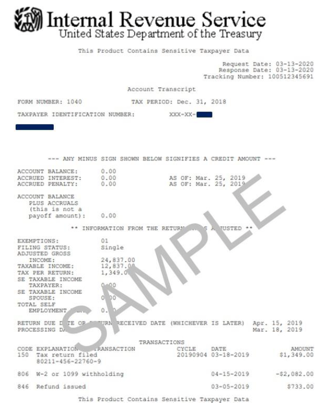
Go to the Get Transcript by Mail section of the IRS website and follow the instructions. You will be given the option to download an electronic copy of your Transcript real-time.
Sample Account Transcript
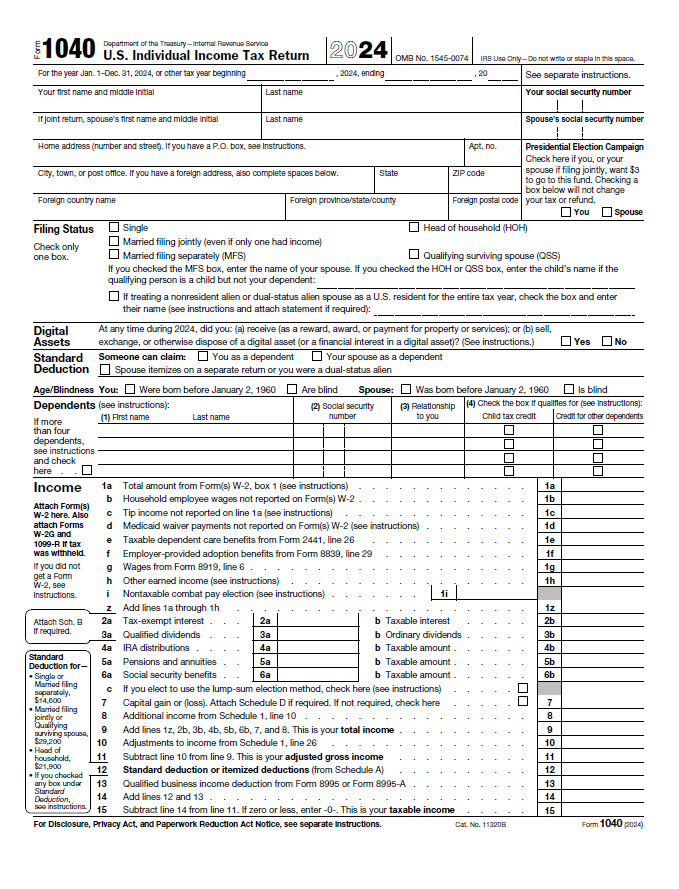
Federal Income Tax Return (1040)
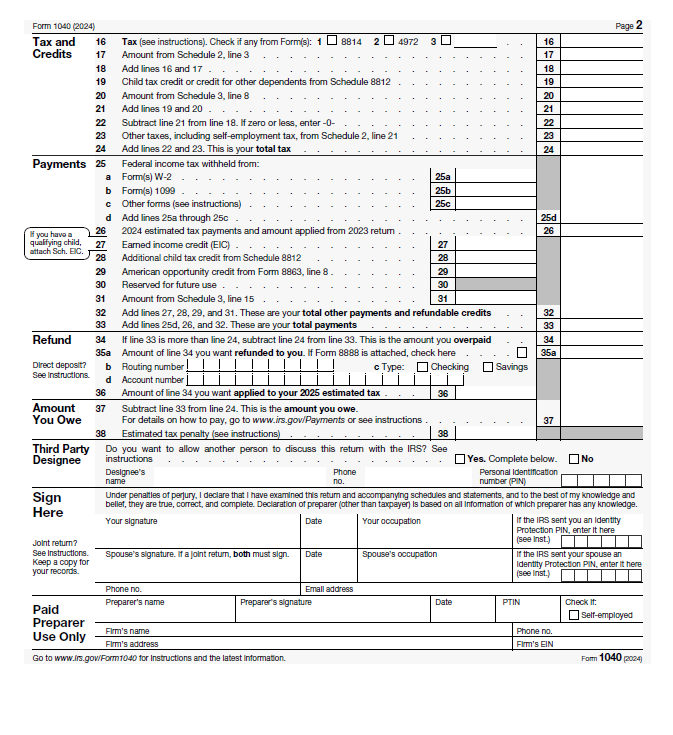
IRS Tax Return Transcript
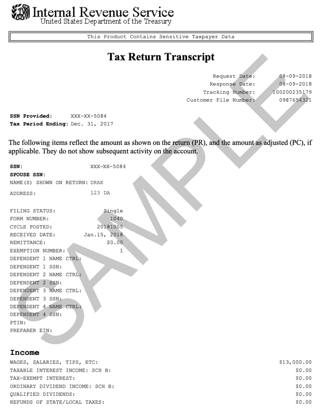
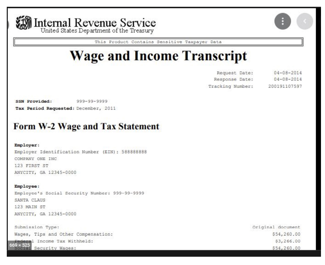
IRS Wage and Income Transcript
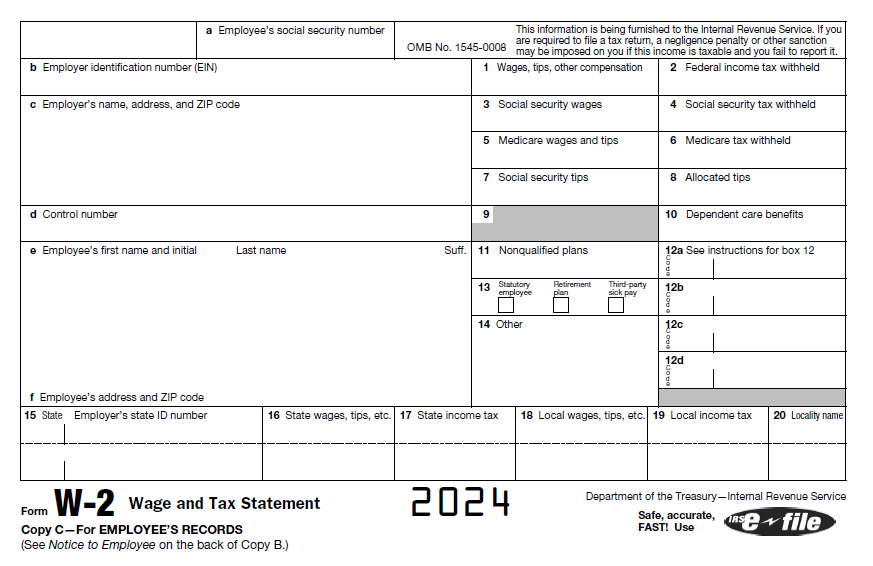
2024 W2 Form
- Go to the IRS Get Transcript website and request the Letter of Non-Filing. If you select the electronic PDF option, you will receive a real-time electronic version of the document.
- The IRS Letter of Non-Filing can also be mailed to you by clicking the Get Transcript by Mail link.
If you are asked to submit W-2's but do not have any, please do one of the following:
- If you are not issued a W-2 based on your type of employment (example: Self-employed), please provide a detailed statement explaining the type of employment and amount you earned for the tax year.
- If you never received a W-2 from your employer or if you did receive a W-2 and have lost or misplaced it, please do not provide a statement. In these instances, students may obtain an IRS Wage and Income Transcript to upload instead of the W-2. The IRS Wage Transcript may be obtained at the IRS Get Transcript website.
If you have additional questions please send an email (from the student’s Maricopa official student email) to financial-aid-services@domail.maricopa.edu.
If your Student Center To Do List item is displayed as Returned, follow these steps:
- Log in to your Student Center using your MEID and password.
- Select the My Student Forms tile, then click the Resubmit Student Forms tile .
- Search for the form that is in Returned status, select it, and click Next.
- Once you are in the form, there will be a message as to why the form was Returned and what needs to be completed in order for the form to be processed. After those corrections have been made, you can sign and resubmit the form for review.
- You can also log in to your Maricopa Student email to find out why a form was returned to you. Look for any emails with the subject line “Problem With Your eForm - Corrective Action Requested”. These emails will give further instructions as to how you can resubmit those returned forms.
- Your To Do List items will be removed once the verification process is completed.
If you would prefer to have your official student email delivered to a personal email address, follow these instructions to forward your email.
You are considered a veteran for FAFSA purposes if:
- You have engaged in active duty (including basic training) in the U.S. armed forces (military, naval, air, or space service), and were released under a condition other than dishonorable.
- You served as a Reservist or member of the National Guard and were called up to active federal duty by presidential order for a purpose other than training.
- You served on active duty for training or inactive duty for training in the U.S. armed forces and were disabled from injury incurred or aggravated in the line of duty.
You are not considered a veteran for FAFSA purposes if:
- You have never engaged in active duty in the U.S. armed forces.
- You were engaged in active duty in the U.S. armed forces but released under dishonorable conditions.
- You are currently a Reserve Officer Training Corps (ROTC) student, a cadet, or midshipman at a U.S. military service academy.
You can provide the DD214 Certificate of Release or Discharge from Active Duty form showing that Character of Service is other than “dishonorable.” The Character of Service can only be found on Member-4 and Service-2 copies of the form. However, until the information is corrected in the VA database, the match results will not change. If the documentation confirms that the student is a veteran, Title IV aid can then be disbursed to the student.
Per Department of Education (ED) regulations, we can only accept the version of the DD214 listed above. If you have the Certificate of Uniform Services version of the form, we are unable to accept that version at this time. You will either need to get the Certificate of Release or Discharge from Active Duty, or you will need to submit a Letter from a Superior Officer stating that you were called up to active duty for one of the reasons listed under “Do I qualify as a Veteran on the FAFSA?” above, that you were released from active duty, and the character of service of the discharge.